

Shared job records, clear status updates, and technician location help managers find blocked work and act without calling for every update.
Field service job tracking works best when every active work order has a shared status, time-stamped updates, notes, and photos. Pair that record with technician location so the office can spot delays and decide what needs attention. Have technicians update the record when work changes, then contact them only when the record leaves an important question unanswered.

Build field service job tracking around one record
Start with a work order that both the office and technician can use. Keep the job ID, service address, appointment window, assigned technician, and work scope together. A message in a separate chat shouldn't be the only place someone can find a changed appointment or an unfinished task.
WePro's job tracking software brings statuses, time-stamped activity, notes, photos, and updates into a work-order timeline. Compare that shared record with the places your team currently stores job details.
Before rolling out the workflow, settle these team rules.
-
Choose who updates work status and who changes bookings.
-
Agree which changes need a note or photo.
-
Keep customer-facing details separate from internal notes.
-
Define who takes over unfinished work when a shift ends.
Use the same job record through schedule changes. Creating a fresh record for every delay can split the history and hide what still needs to happen.
Give each status a clear meaning
A status helps only when everyone reads it the same way. Use plain definitions like these for the status examples WePro lists. These are suggested team rules, not claims about automatic software actions.
| Status | What it tells the office |
|---|---|
| En route | The technician is traveling to the assigned job. Arrival hasn't been recorded yet. |
| On site | The technician has arrived. This doesn't prove that repairs have started. |
| Waiting on parts | Needed parts are blocking the remaining work. The job stays open. |
| Follow-up scheduled | Another visit is booked to finish the current job's scope. |
| Completed | The assigned scope is finished. No further visit is needed to finish that scope. |
Keep the status short. Put the reason for a change in the note. That lets the office scan the job list without losing the detail needed to make a decision.
Read technician location beside job status
WePro's technician GPS tracking connects location with jobs, stops, schedules, and route changes. Use that view to spot travel conflicts across your service territory. A map pin doesn't tell you whether the assigned work is moving forward.
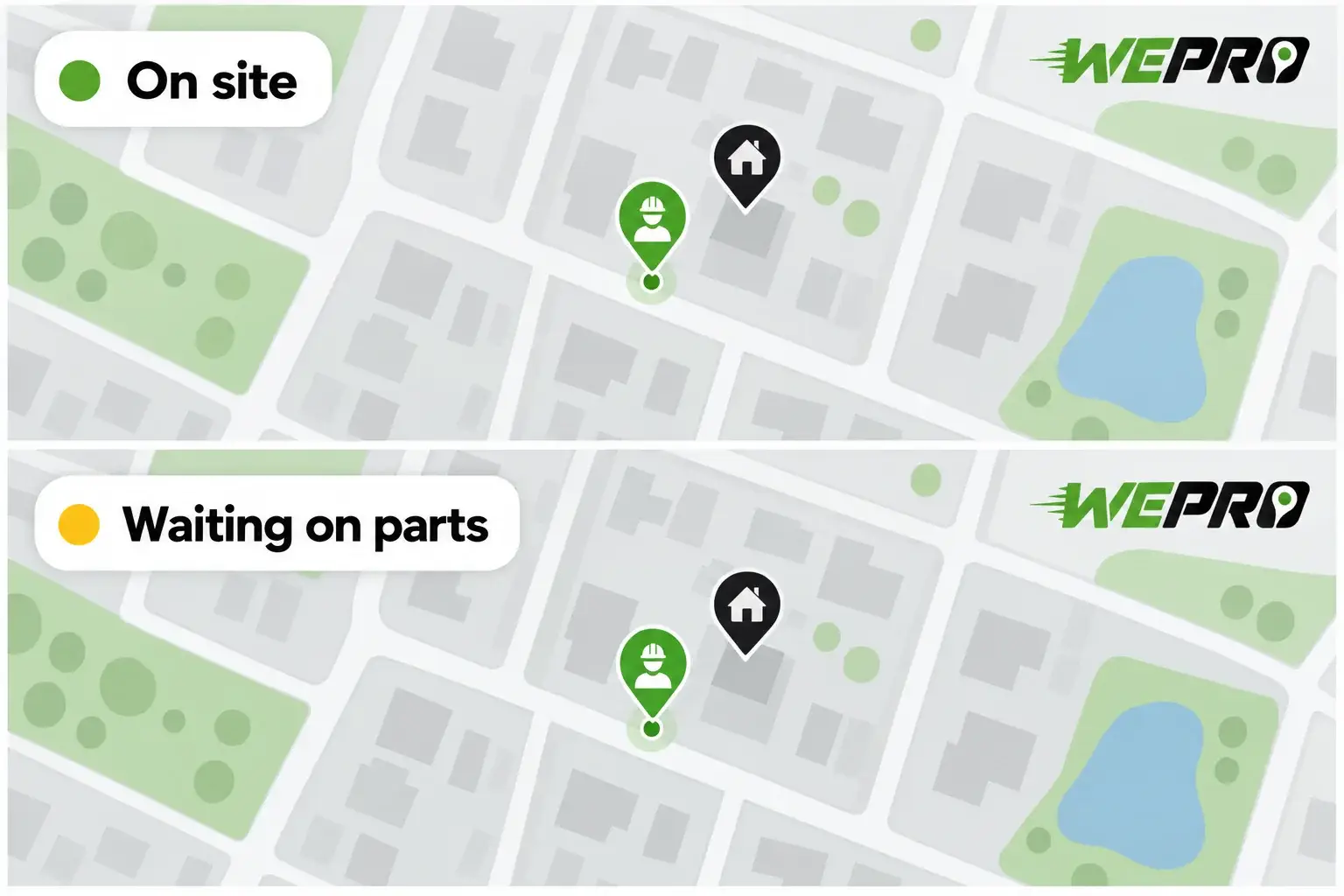
Location accuracy depends on device GPS, network connection, and enabled permissions. Don't treat a pin as an exact position. Before moving a nearby follow-up call, check known traffic or route changes, the technician's current work, needed skills, and available parts. The nearest technician isn't always the right choice.
Review exceptions at clear points in the day
Review open jobs at morning rollout, during midday schedule changes, and before the last calls. Each review should answer a different question.
- Morning rollout Which jobs haven't moved toward their planned start? Check for assignment or booking changes.
- Midday changes Which unfinished jobs threaten later appointment windows? Decide whether the remaining schedule still fits.
- Last calls Which unresolved jobs need a handoff? Make sure the next dispatcher can see the remaining work and its owner.
Use planned update points to judge whether a record needs attention. A long visit alone doesn't show poor performance. The work may have changed, or the technician may be waiting for access.
If the record is unclear, make a focused call about the missing detail. Resolve the question, then put the answer back into the job history so the next person doesn't need to call again.
Give blocked work an owner and a next check
A blocker note should say what stopped the work, who owns the next action, and when the team will check again. Otherwise, a visible delay can still sit untouched.
For a job waiting on parts, name the person who will check availability. Record what that person needs to do next and set a check time that fits the situation. Don't promise a return visit before the needed part and appointment are confirmed.
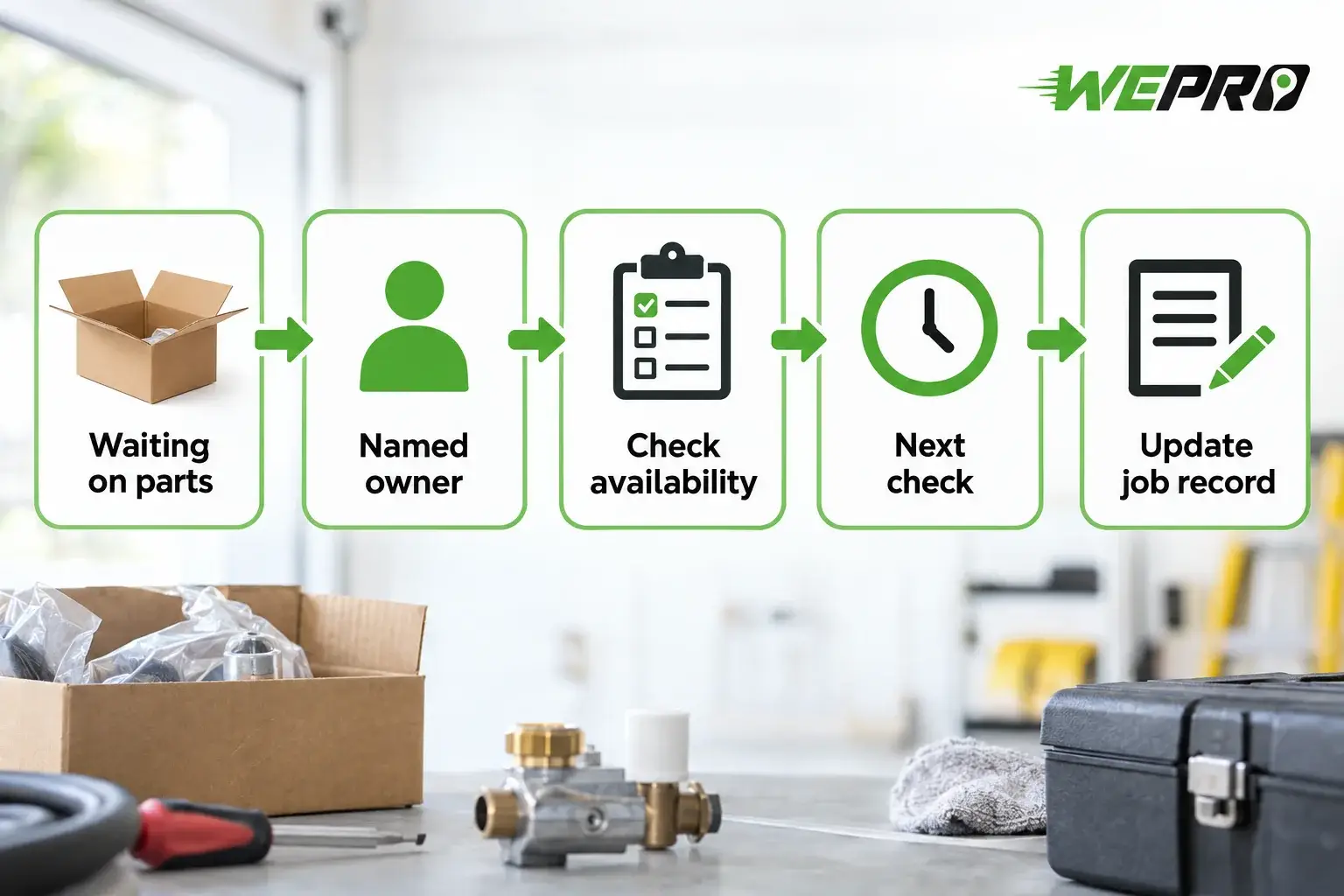
Keep the latest note tied to the original work order. Photos can show a condition or part label, while the written note explains why it matters. Neither should leave the office guessing who must act next.
Give customers the next confirmed step
The office should turn job updates into clear customer messages. Separate confirmed facts from estimates. A technician traveling to a job supports a travel update. It doesn't support an exact arrival promise unless the team has a reliable basis for it.
When work pauses, explain the next action and when the customer should expect another update. If the return date isn't known, say so. A clear plan for the next contact is more useful than a date the team can't support.
Common questions about tracking active jobs
Talk with WePro about field service job tracking. Share a sample work order and the handoff your office struggles with, then request a walkthrough of that workflow.